Week 4 - Installation of R and computer set-up
CHU0387 | National Taiwan Normal University
1.1. What is R? What is RStudio?
The Engine: R

The main program where all the mathematical magic and deep computations happen.
The Dashboard: RStudio

A user-friendly interface that makes it incredibly easy to interact with R.
1.2. Download and Install
Go to the RStudio website by clicking here. You will see something like this:

Next, choose your CRAN (The Comprehensive R Archive Network). Let’s choose the one in Taiwan. You will need to scroll down the page to find the link.

Choose the files to download according to your computer’s operating system. The most common are macOS (for Apple computers) or Windows.

On the next page, choose the subdirectory. For our purposes, we only need the “base” subdirectory.

We finally got to the last page! Click on the first link to download the files, as shown below. Wait until the file is downloaded, open it, and follow the standard instructions to install R on your computer.

Now that R is installed, it is time to do the same with RStudio. Go to the RStudio website by clicking here. You will see something like this:

Scroll down to look for the download links. Again, choose the right file for your operating system. Just click the link, let it download, open the file, and follow the instructions!

You should obtain something like this

Pay attention to the names
Generally, it is better not to use any space when naming folders and files!
1.2 Initializing Your R Project
1. Launch New Project Wizard
Click the blue cube icon in the top-left corner of RStudio.
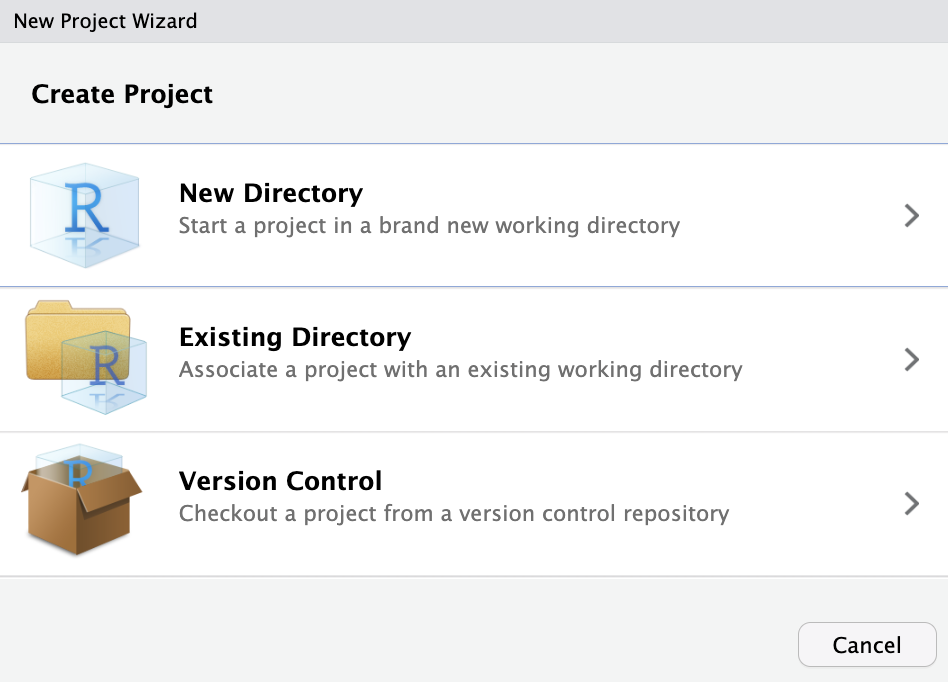
2. Select project type
Choose “Existing Directory” to link R to your folder structure.
3. Finalize Connection
Browse to PreprocessingAnalysesR, check “Open in a new session”, and click Create Project.

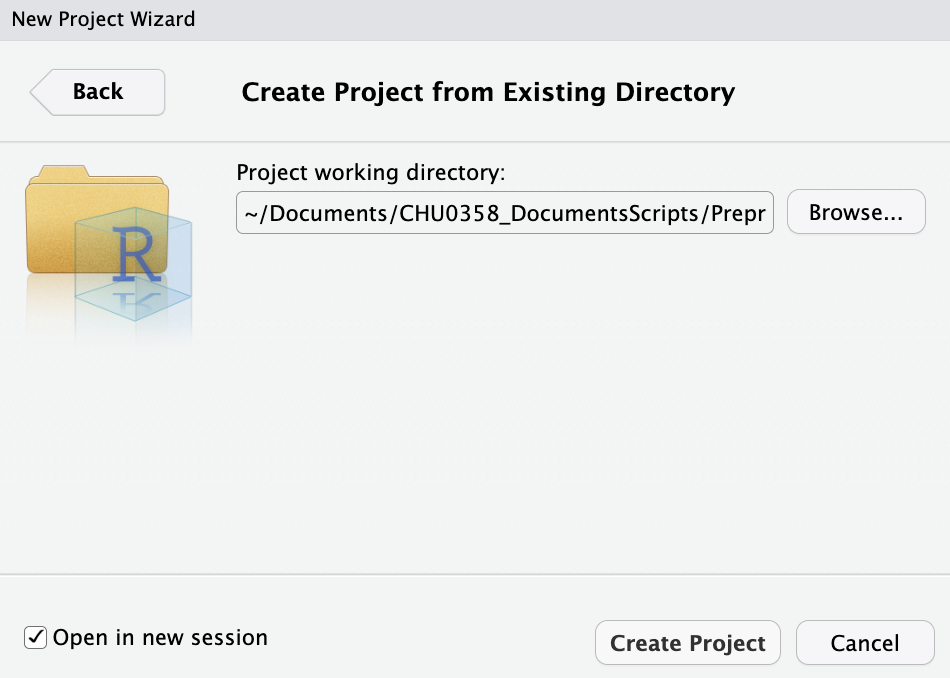
Benefit: An .Rproj file sets your “Working Directory” automatically!
Other advantages of creating projects
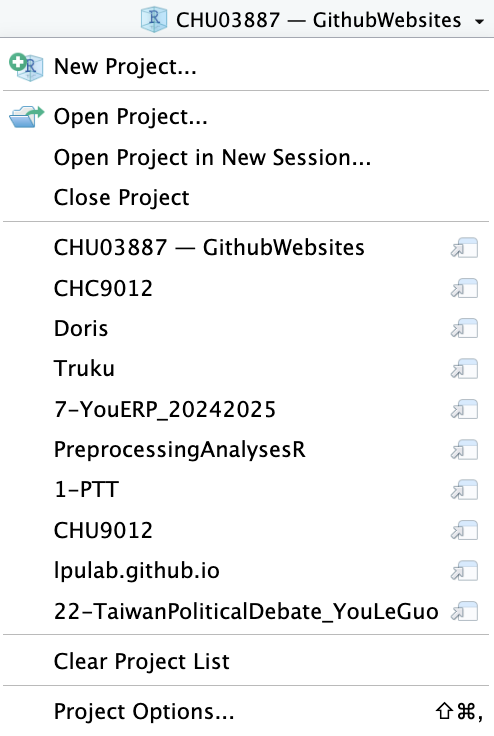
- One RStudio window = One project
- Switch between them without worrying about the working directory of trying to find the right files!
- List of your projects on the top-right corner of RStudio. Here is mine for example: